Microsoft Teams Audio‑Only Meeting Recording: How it Works and Why it Keeps Meetings Human

This is something I’ve experienced repeatedly, across very different types of meetings. The moment someone starts a recording in Microsoft Teams, cameras begin to turn off. It rarely happens all at once, but within seconds the meeting changes. Faces disappear, reactions become harder to read, and what was a conversation starts to feel transactional. You still hear voices, but the human layer is thinner. Facial expressions, pauses, empathy, all the small cues that help people connect are suddenly missing.

That reaction is usually not about disengagement. It’s about comfort. People join meetings from their homes, personal offices, or shared spaces they don’t want permanently captured. Being recorded on video in those environments doesn’t feel right for everyone, and that hesitation is entirely reasonable. Until recently, recording a meeting in Teams meant recording everything. If you needed a record of the discussion, you also asked people to accept being visually captured.
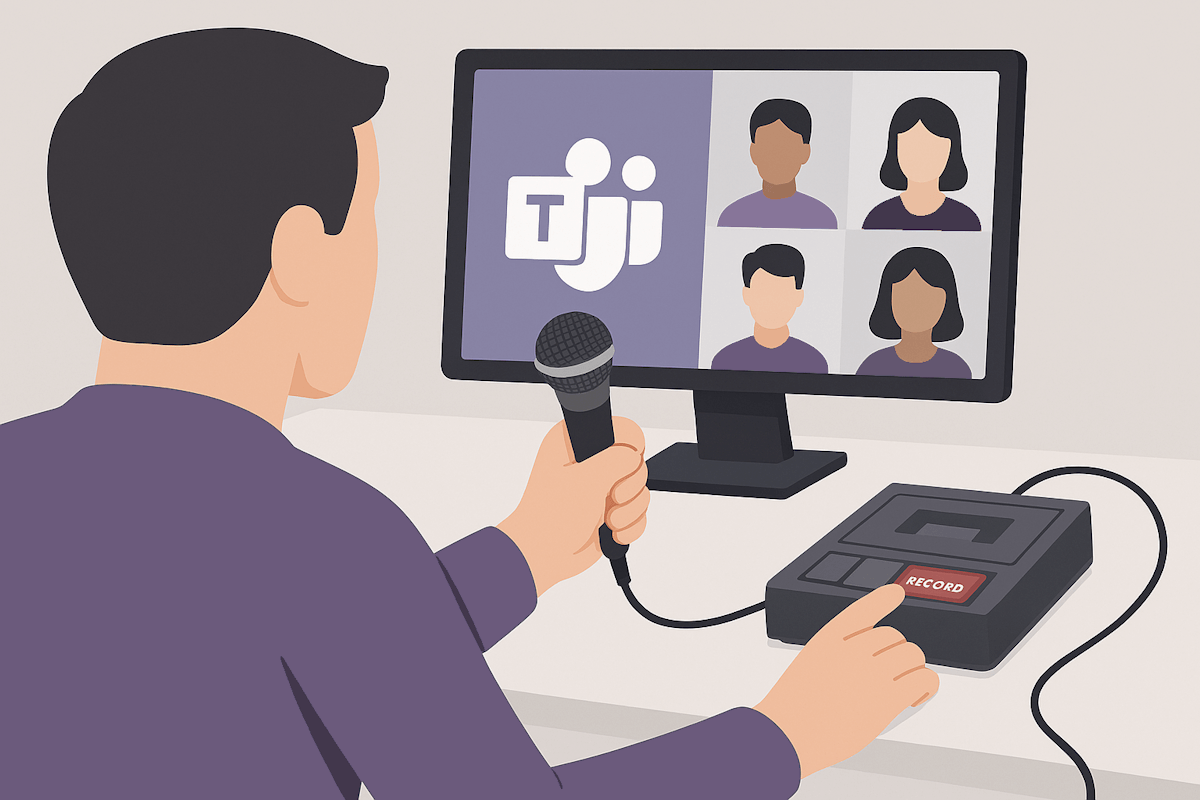

Microsoft Teams Audio Recording

(more…)

Allowing Users to Change Their Display Name in Microsoft Teams Meetings

Names in Microsoft Teams meetings are not always accurate. In many organizations, the display name comes from an identity system that was configured years ago and never revisited. In other cases, users are known by a preferred name, a shortened version, or a name that better reflects how they are addressed in daily work. This becomes more visible in meetings, especially when working with external participants or across teams that do not interact regularly.

Microsoft Teams now allows participants to change their display name during a meeting. The change is temporary and applies only to that specific meeting. This gives users a way to correct mistakes, adjust how they are identified, or align their name with how they are recognized by others, without changing their global profile.

Change the name during a Microsoft Teams meeting

(more…)

How to Fix the Broken Connection Between Exchange Calendar and Microsoft Teams

Recently, I encountered an interesting connectivity challenge between Exchange calendars and Microsoft Teams. One day, everything was running smoothly when suddenly my Teams room devices began experiencing issues. If this sounds familiar, let me share the troubleshooting journey and solution that could save you considerable time.

Microsoft Teams Calendar

(more…)

How to Enable 1:1 and Group Call Recordings in Microsoft Teams

Sometimes you might need to record a 1:1 or group call in Microsoft Teams, where you are talking about important topics that you want to keep for later. But what if the option to record calls is disable?

Don’t worry, there is a way to turn on 1:1 and group call recordings for everyone in your organization or for specific users. In this article, I’ll show you how to do it.

Enable Microsoft Call Recording

(more…)

Boost Your Team’s Productivity with Microsoft Teams New “Meet Now” in Group Chats

Are you tired of the back-and-forth when trying to schedule a quick meeting? Microsoft Teams is revolutionizing the way we collaborate with the introduction of the Meet Now feature in group chats. This innovative addition is designed to streamline your workflow, allowing you to start an instant, ringless live discussion with your colleagues without the hassle of scheduling.

New Microsoft Teams feature - Meet Now for Group Chats

(more…)

How to Enable or Disable Share Any Window from the Taskbar in Windows 11

Windows 11 introduced a feature that allows users to easily share a window while in a meeting in Microsoft Teams by clicking on a share button directly from the taskbar. This experience was built to prevent you from jumping back and forth between applications and is extremely useful when sharing individual windows instead of the entire screen.

However, some users may not see this handy feature and may think that it is related to the new version of Microsoft Teams. Well, this is not true and the option can be enabled or disabled on the Windows settings. In this blog post, I will show you how to do that.

Share any window from Windows 11

(more…)

How to save the decorated background images generated by Microsoft Teams Premium

Microsoft Teams Premium is a new subscription that enhances the existing Teams features with more options that make Teams meetings more personalized, smart, and secure.

One of the most amazing features in Teams Premium is Decorate your background, a new creative background effect in Teams that makes meetings more enjoyable and personal by using AI to transform your meeting background. This feature allows you to seamlessly merge your physical and digital spaces, enabling you to change the appearance of your physical meeting room for each call. This technology allows for easy room makeovers, adding virtual plants, or festive decorations for special events, all without the need for an extreme makeover to your room.

Microsoft Teams Premium Decorate background

(more…)

How to Add a Watermark to Your Microsoft Teams Meetings

If you want to share sensitive or confidential information during your Microsoft Teams meetings, you might want to use a watermark to prevent unauthorized screenshots or recordings. A watermark is a subtle image that shows up on the meeting window, without blocking the view of the content. It displays the email address of each participant, so they know that the meeting is protected.

Microsoft Teams Watermark

(more…)

How to manage your meetings better with Meet in Microsoft Teams

Are you looking for a better way to manage your meetings in Microsoft Teams? If so, you might want to check out the new Meet application, a central location for all your meetings.

With Meet in Microsoft Teams, you can access everything you need for your meetings in one convenient place. Whether you want to get ready for upcoming meetings, review what happened in previous ones, or find the recordings, chats, and recaps of your meetings, Meet has it all.

Microsoft Teams meet app

(more…)

How to turn off incoming video in Microsoft Teams: Save bandwidth for better remote meetings

In today’s digital age, remote work and virtual meetings have become the norm. While the flexibility of working from home or anywhere else is a tremendous advantage, it does come with its own set of challenges. One of the most significant challenges is dealing with less-than-perfect internet connections. We’ve all been there – the video starts buffering, the audio gets choppy, and frustration sets in.

In such situations, every ounce of bandwidth becomes precious. This is where the ability to turn off incoming video in Microsoft Teams becomes a valuable feature. In this blog post, we’ll guide you through the process of disabling incoming video during a Teams meeting. By doing so, you can ensure a smoother and more efficient virtual meeting experience while conserving bandwidth.

Turn off incoming video Microsoft Teams

(more…)


I've been working with Microsoft Technologies over the last ten years, mainly focused on creating collaboration and productivity solutions that drive the adoption of Microsoft Modern Workplace.

Trending Posts