

 HANDS ON SharePoint
 HANDS ON Teams
 HANDS ON Lists
 HANDS ON tek
 M365 Admin
How to Keep Using Logitech MX Creative Console with Microsoft Teams After API Deprecation
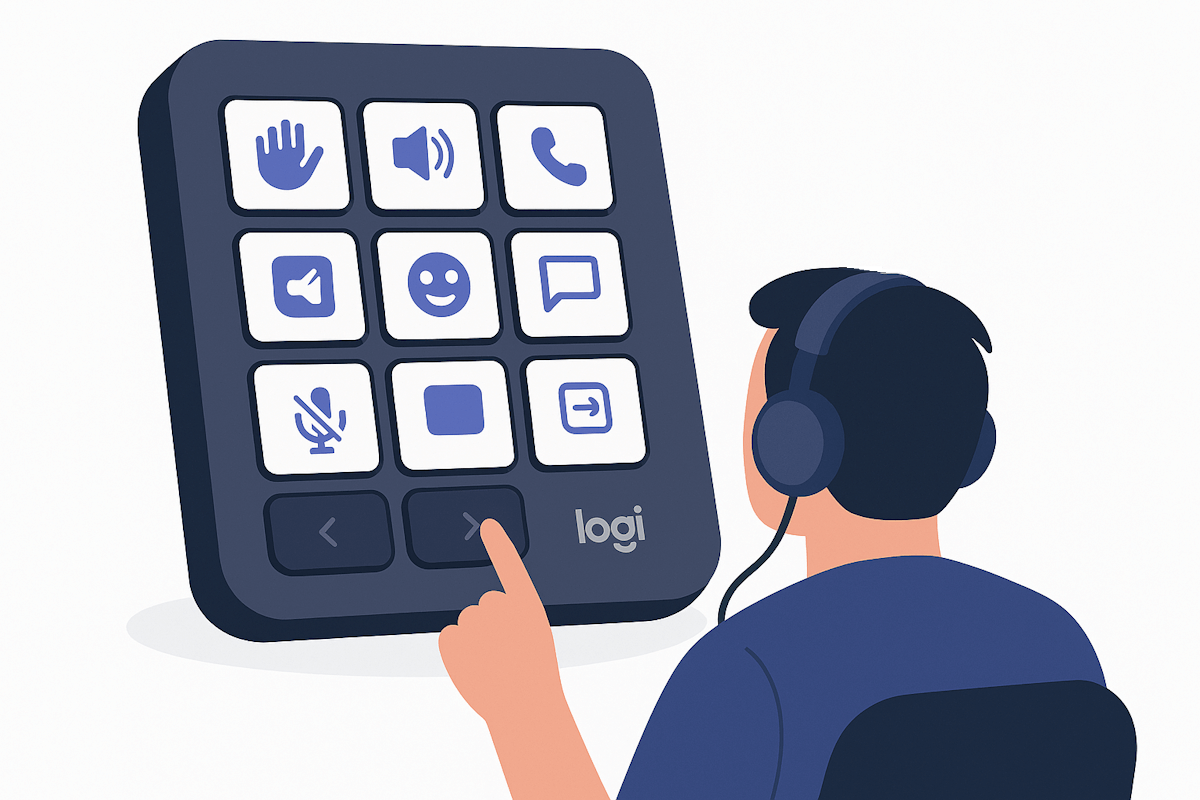
So… Microsoft decided to kill the third-party API integration for Teams. Yep, the same API that made your Logitech MX Creative Console super handy for reactions and quick actions. This change is rolling out in December 2025, and if you’ve been using the console for Teams, you’re probably thinking: “Great… now what?”
Don’t panic. Your investment in that shiny console isn’t wasted. You can still make it work with Teams — just in a slightly different way.
What’s Changing?
The API-based actions (like sending reactions with a single button) will stop working. Once Microsoft shuts down the API your actions will no longer work in Microsoft Teams. So if you are pushing the mute button on the console and nothing happens this post is for you.
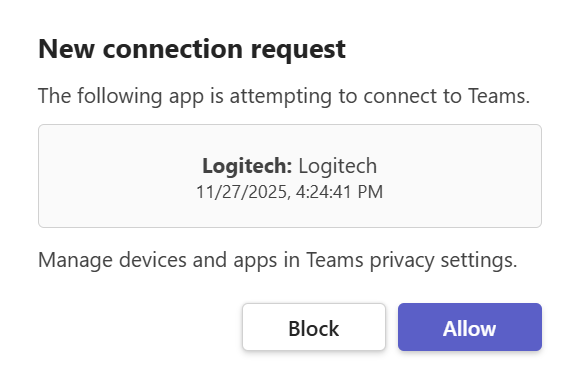
How Can You Make it Work Again?
Keyboard shortcuts still work, they’re here to stay. And the Logi Options+ application lets you map those shortcuts to your console buttons.
So, instead of relying on the API, we’ll use Logitech’s context-aware profiles and Teams shortcuts. When you open Teams, your console will automatically switch to the profile you created for Teams.
What You’ll Need
- Logitech MX Creative Console
- Logi Options+ (latest version)
- Microsoft Teams installed
- Optional: Teams icon set from the Logi Marketplace (for that polished look)
Step-by-Step: Set It Up
- Open Logi Options+
Make sure your console is detected and ready.
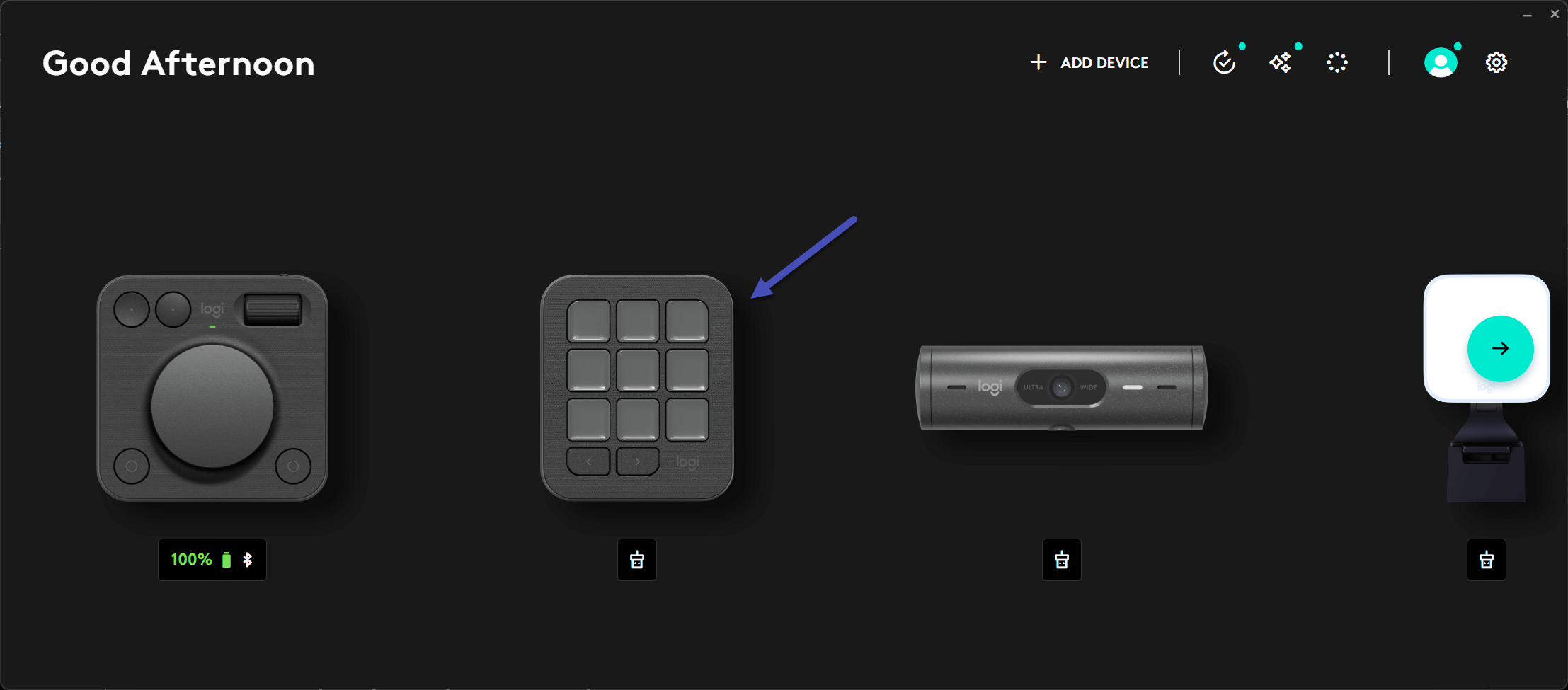
- Create a New Profile for Microsoft Teams
- Click Add Profile → Select Application Profile.
- Search for Microsoft Teams, it will show in the Other Applications section.
- Once you select the Microsoft Teams application, click Start with a blank Profile
- This makes the profile context-aware, so it activates only when Teams is in focus.

- Map Actions to Keyboard Shortcuts
- Decide what you want: mute/unmute, toggle camera, share screen, hang up.
- Assign each button or dial to the corresponding Teams shortcut (see the table below).

- Add Icons (Optional but Cool)
- Download the Teams icon set from the Logi Marketplace.
- Assign icons to each action for a clean, visual setup.

- Test It Out
- Jump into a Teams call and try your new setup.
What You’ll Lose
- Quick reactions (❤️) — those were API-only.
- Everything else? Still doable with shortcuts. So mute, camera toggle, raise hand, share screen, and hang up are safe.
Teams Keyboard Shortcuts You’ll Need
Here are the most common shortcuts for Windows and macOS that match the old API actions:
|
Action |
Windows |
macOS |
|
Mute/Unmute |
Ctrl + Shift + M |
Cmd + Shift + M |
|
Toggle Camera |
Ctrl + Shift + O |
Cmd + Shift + O |
|
Toggle Background Blur |
Ctrl + Shift + P |
Cmd + Shift + P |
|
Share Screen |
Ctrl + Shift + E |
Cmd + Shift + E |
|
Raise Hand |
Ctrl + Shift + K |
Cmd + Shift + K |
|
End Call |
Ctrl + Shift + H |
Cmd + Shift + H |
You can map other Teams actions to the keyboard, to see all the options available press CTRL + . on Windows or Cmd + . on macOS. You can also check the full list of shortcuts online in the official Microsoft documentation.
Final Thoughts
Yeah, losing the API sucks, no more one-click reactions. But with this setup, your MX Creative Console still rocks for Teams. You keep the core functionality, and honestly, shortcuts are as good as the API when Teams is in focus once you get used to them.







No comments yet