

 HANDS ON SharePoint
 HANDS ON Teams
 HANDS ON Lists
 HANDS ON tek
 M365 Admin
How to Keep Using Elgato Stream Deck with Microsoft Teams After API Deprecation
If you’ve been using your Elgato Stream Deck to control Microsoft Teams, there’s an important change coming: starting December 2025, the official integration will stop working. This is confirmed in the Elgato Marketplace, and it’s happening because Microsoft is removing the third-party API that powers these features.
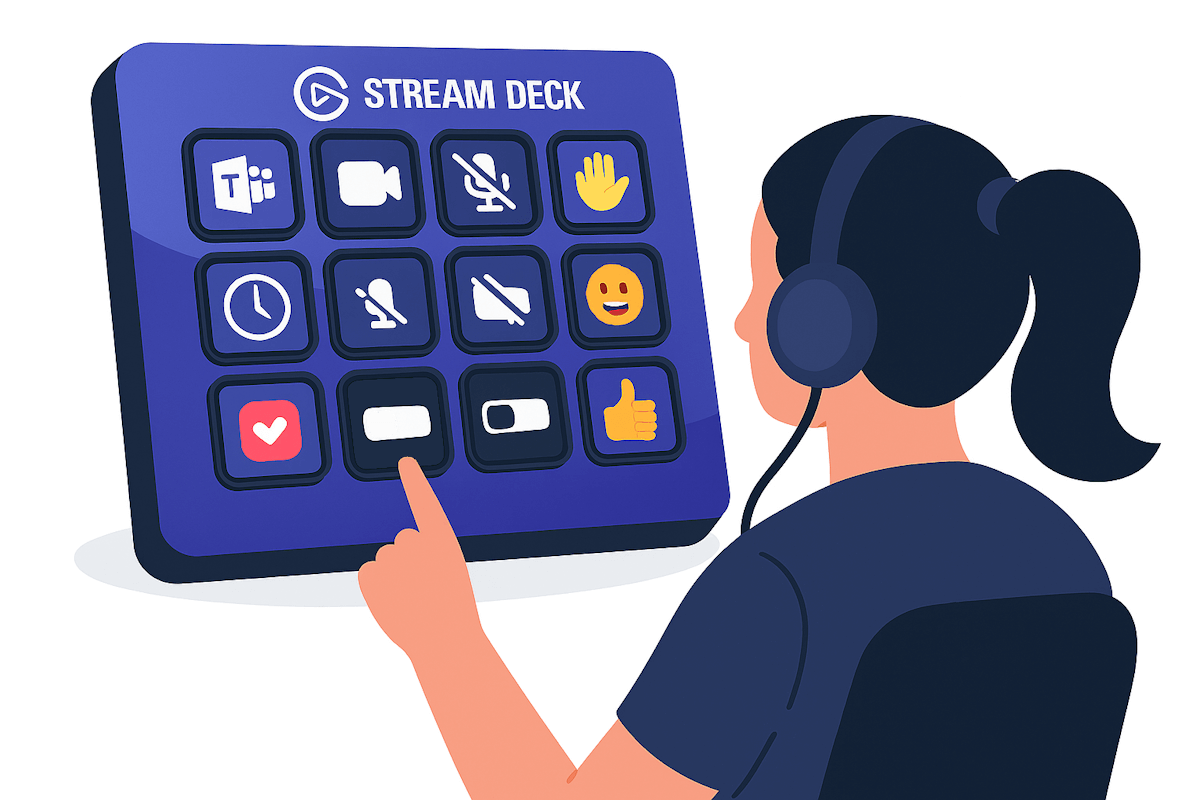
So, what does this mean for you?
- No more API-driven actions like sending reactions or seeing live status indicators for your mic, camera, or raised hand.
- But don’t worry — you can still make your Stream Deck useful for Teams by switching to keyboard shortcuts.
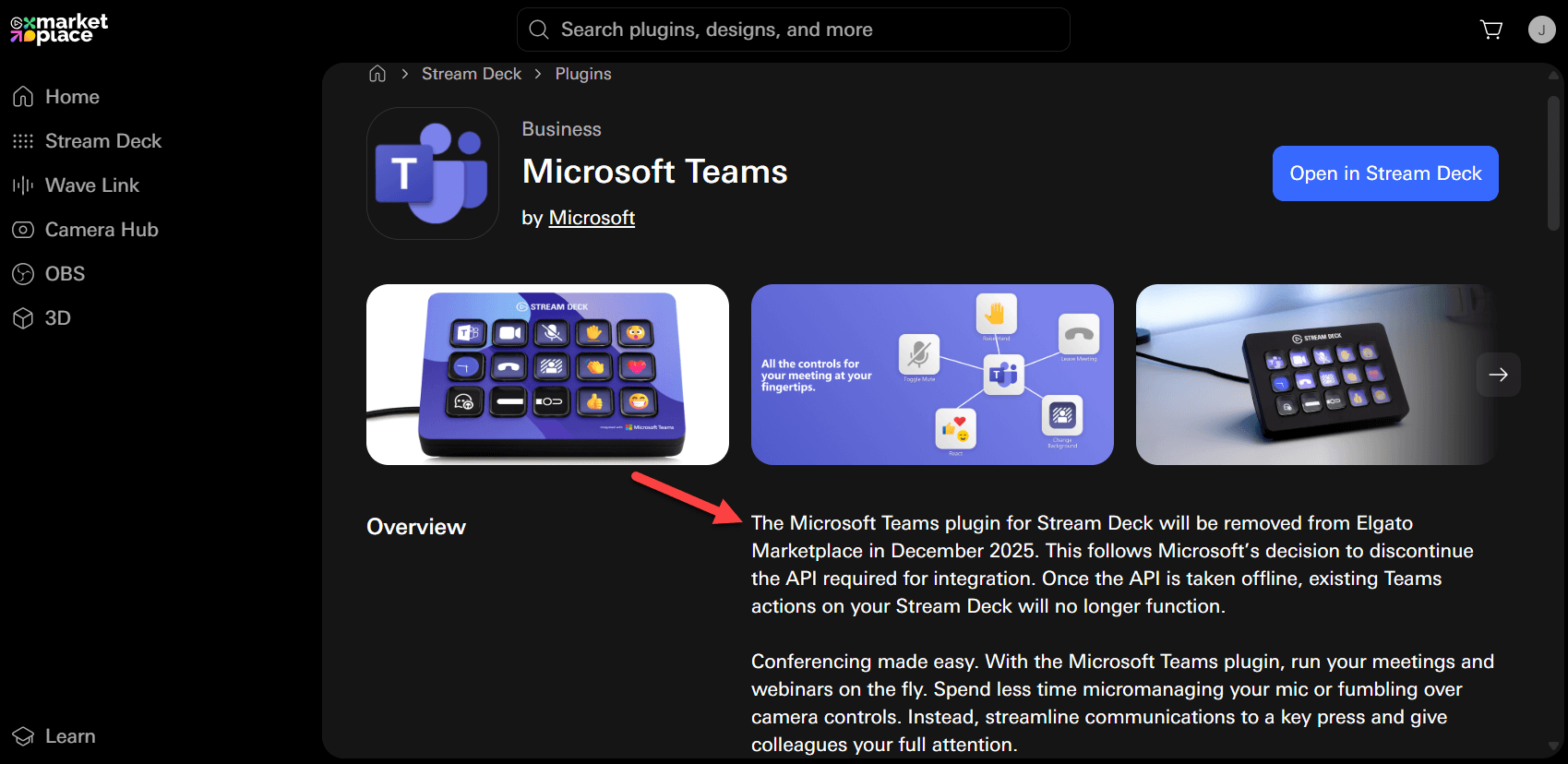
Why Is This Happening?
Microsoft is deprecating the API that allowed external devices to interact directly with Teams. Elgato’s plugin relies on that API, so once it’s gone, those advanced features (reactions, live feedback) won’t function.
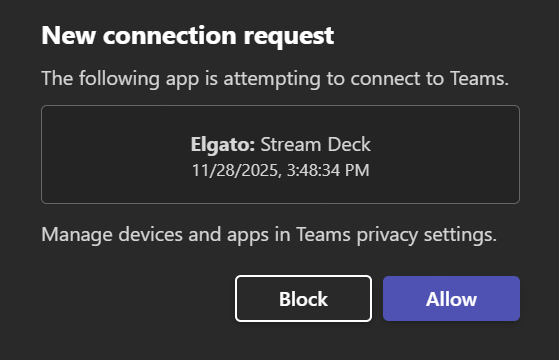
The Workaround: Hotkey System Action
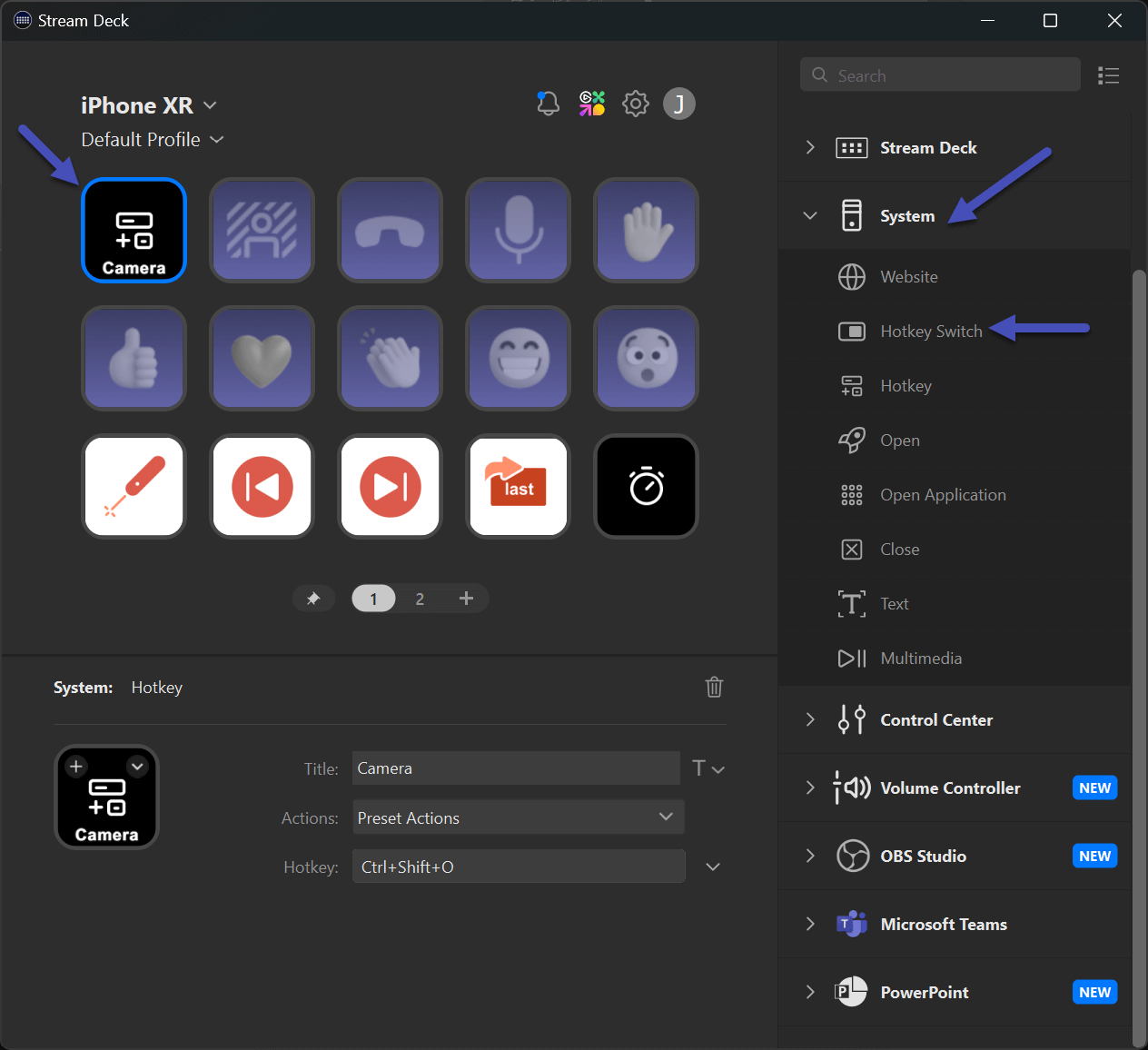
The good news? Teams supports a solid set of keyboard shortcuts for core actions like mute/unmute, toggle camera, share screen, and hang up. Stream Deck can trigger these shortcuts using its Hotkey System Action.
Step-by-Step Setup
- Open Stream Deck Software
Make sure you’re running the latest version. - Update your Profile for Microsoft Teams
- Open your Microsoft Teams profile.
- Add Hotkey Actions
- For each button, choose System → Hotkey.
- Replace the buttons from the original Microsoft Teams plugin and assign the corresponding Teams shortcut (see the table below).
- Use Microsoft Teams Icons (Optional)
- Download the Teams icon pack from the Elgato Marketplace.
- Apply these icons to your buttons for a clean, professional look.

- Test Your Setup
- Jump into a Teams call and try your new layout.
- You’ll still have quick access to mute, camera toggle, share screen, and hang up.
What You’ll Lose
- Reactions (❤️) — these were API-only.
- Status indicators for mic, camera, and raised hand.
- Everything else? Still possible with shortcuts.
Essential Teams Shortcuts
Here are the most useful shortcuts for Windows and macOS:
|
Action |
Windows |
macOS |
|
Mute/Unmute |
Ctrl + Shift + M |
Cmd + Shift + M |
|
Toggle Camera |
Ctrl + Shift + O |
Cmd + Shift + O |
|
Toggle Background Blur |
Ctrl + Shift + P |
Cmd + Shift + P |
|
Share Screen |
Ctrl + Shift + E |
Cmd + Shift + E |
|
Raise Hand |
Ctrl + Shift + K |
Cmd + Shift + K |
|
End Call |
Ctrl + Shift + H |
Cmd + Shift + H |
You can map other Teams actions to the keyboard, to see all the options available press CTRL + . on Windows or Cmd + . on macOS. You can also check the full list of shortcuts online in the official Microsoft documentation.
Final Thoughts
Yes, losing the API integration is frustrating, but your Stream Deck can still be a powerful Teams companion. By mapping shortcuts to buttons and using the Microsoft Teams icon set, you’ll keep some of the most important controls at your fingertips.






No comments yet